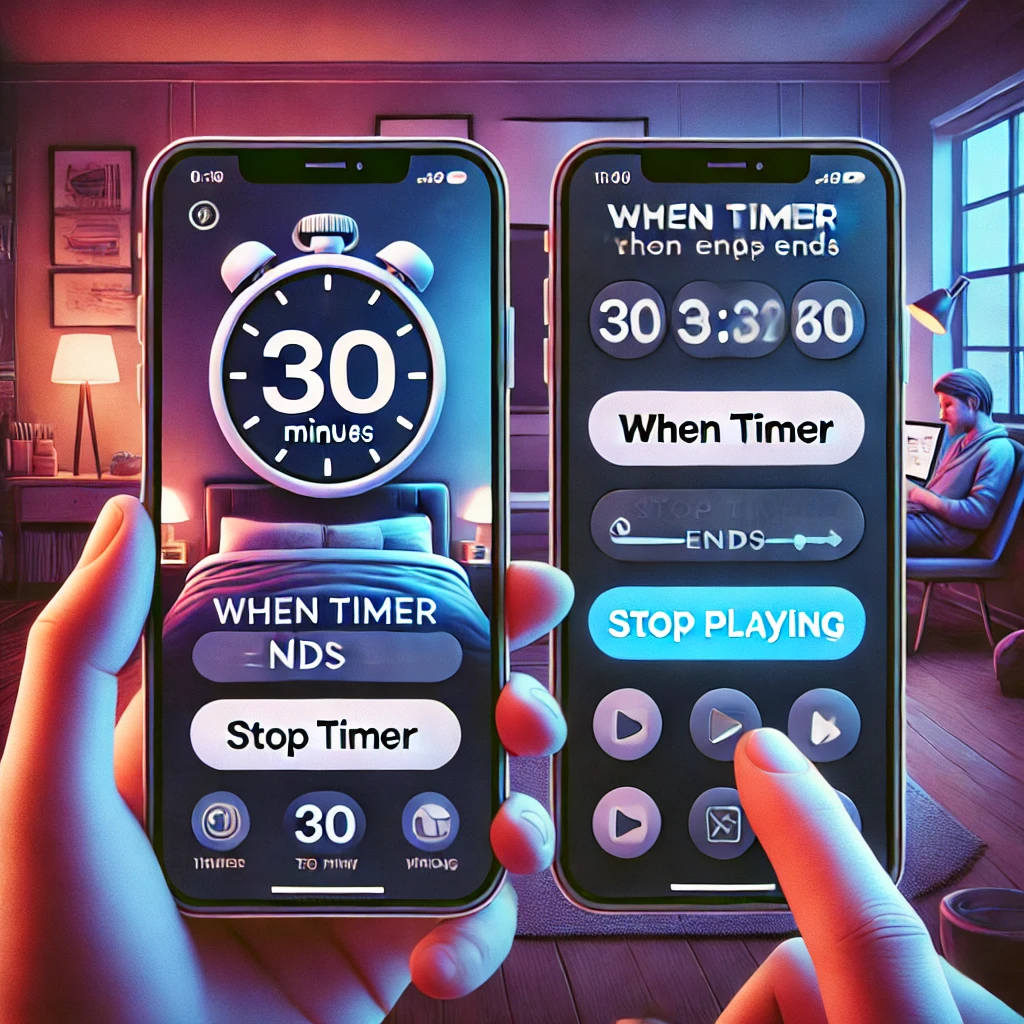
Do you often fall asleep while watching your favorite subscription videos on your iPhone? Worry no more! With the built-in Timer feature on your iPhone, you can easily set a timer to stop video playback automatically. This simple trick ensures that you don’t wake up to a dead battery or lose track of where you left off in your show. Here’s a step-by-step guide to setting it up:
Step-by-Step Guide to Set a Timer to Stop Video Playback
- Open the Clock App
Launch the “Clock” app on your iPhone. It’s a built-in app that comes pre-installed on all iPhones. - Go to the Timer Tab
Tap on the “Timer” tab at the bottom right corner of the app. - Set the Desired Time
Decide how long you’d like to watch your video before the playback stops. For example, if you want to watch for 30 minutes, set the timer to 30 minutes. - Select “When Timer Ends”
Scroll down and tap on the “When Timer Ends” option. - Choose “Stop Playing”
From the list of sounds, scroll to the bottom and select “Stop Playing.” This ensures that when the timer runs out, it will stop all media playback, including videos, music, and more. - Start the Timer
After selecting “Stop Playing,” tap “Set” in the top right corner, then hit “Start” to activate the timer. - Enjoy Your Video Safely
Now, relax and enjoy your video without worrying about it playing endlessly. The playback will stop automatically once the timer reaches zero.
Why This Feature is Useful
- Battery Saver: Prevents your battery from draining overnight.
- Convenience: Avoids the hassle of manually stopping playback.
- Flexibility: Works with most apps, including YouTube, Netflix, and Apple Music.
Pro Tip
If you’re using apps that don’t directly support this feature, the “Stop Playing” option in the timer is a lifesaver. Just make sure the app doesn’t have background playback enabled.
With this handy trick, you can drift off to sleep peacefully while enjoying your favorite shows. Try it out and share it with friends who love watching videos on their iPhones!









Comments