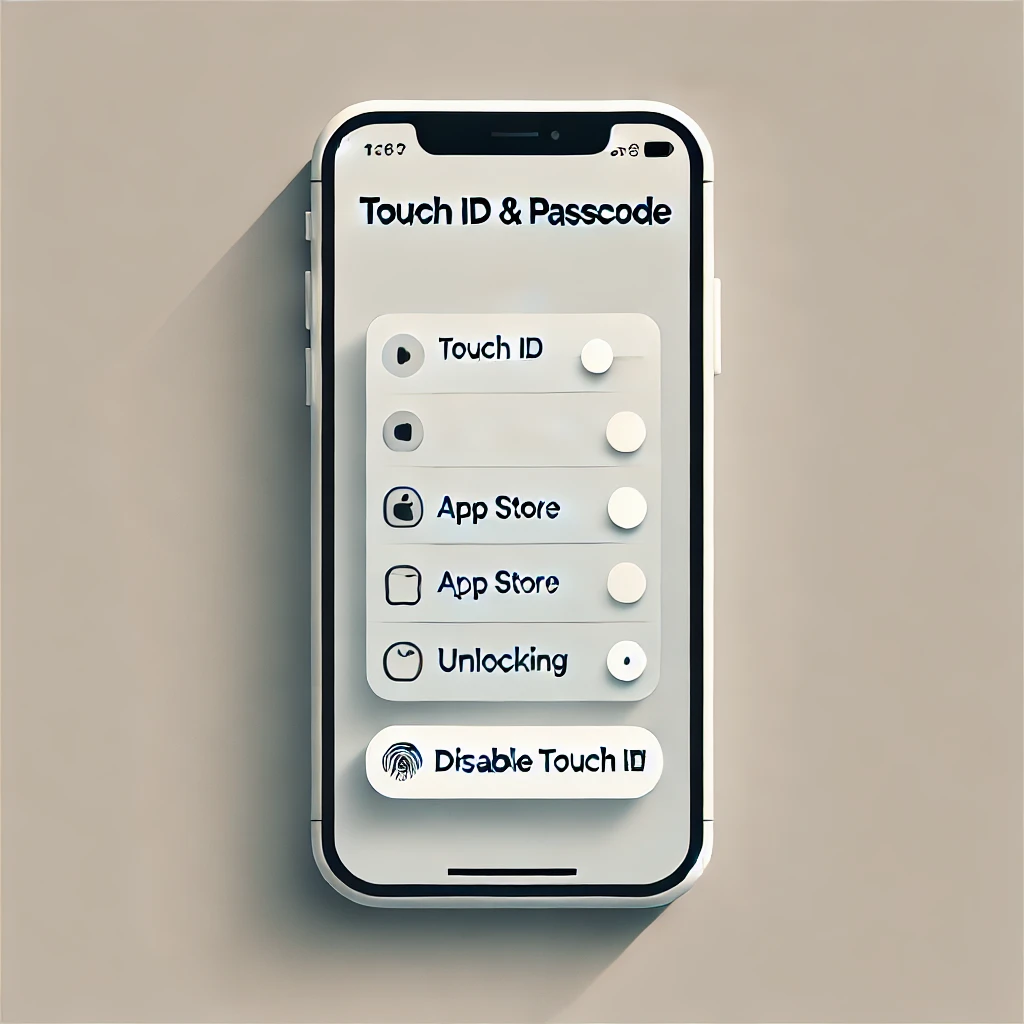
How to Disable Touch ID for Specific Apps on iPhone
Touch ID offers a convenient way to secure your iPhone and apps, but sometimes, you may find it unnecessary or inconvenient for certain apps. If you’re looking to disable Touch ID for a specific app or altogether, this guide will walk you through the process.
Step 1: Check the App’s Settings
Most apps that use Touch ID have an option to disable it in their settings. Here’s how to find it:
- Open the app you want to adjust.
- Look for the Settings or Account Management section.
- Locate the option for Touch ID or Biometric Authentication.
- If available, toggle it off to disable Touch ID for that app.
If you don’t see this option, it may not be possible to disable Touch ID for that app specifically.
Step 2: Adjust iPhone Settings
For some apps, Touch ID functionality may be tied to your iPhone’s system settings. Follow these steps:
- Open the Settings app on your iPhone.
- Go to Face ID & Passcode or Touch ID & Passcode (depending on your device).
- Enter your passcode.
- Scroll to find sections like iTunes & App Store or other app-specific settings that might use Touch ID.
- Toggle these settings off if they are not needed.
Step 3: Reinstall the App
Some apps enable Touch ID during the initial setup. To reset this:
- Delete the app from your iPhone.
- Reinstall it from the App Store.
- When setting up the app again, look for an option to skip enabling Touch ID.
This method ensures you start fresh without Touch ID activated for that app.
Step 4: Disable Touch ID for Your Entire iPhone
If you can’t disable Touch ID for a specific app and it’s causing inconvenience, you might consider turning it off entirely:
- Open the Settings app.
- Go to Face ID & Passcode or Touch ID & Passcode.
- Enter your passcode.
- Disable Touch ID options for:
- iPhone Unlock
- Apple Pay
- iTunes & App Store
- This will stop Touch ID from being used across your device.
Things to Keep in Mind
- App-Specific Limitations: Some apps require Touch ID or Face ID for security reasons, and this cannot be disabled without compromising the app’s functionality.
- Alternative Authentication: If Touch ID is mandatory, consider switching to other authentication methods like a passcode or app-specific PIN.
By following these steps, you can regain control over when and where Touch ID is used on your iPhone. If an app doesn’t allow disabling Touch ID, you may want to contact the app’s developer for further support.
Let us know in the comments if these tips helped or if you have additional questions!









Comments