My Experience
Ever felt nervous when letting someone else use your iPad? I certainly have. Once, during a presentation, I handed my iPad to a colleague, only for them to accidentally exit the slideshow and start browsing through my personal photos! Another time, I set up an iPad at a trade show booth, but visitors kept navigating away from our promotional content, leaving me to constantly monitor and reset the device.
These experiences taught me the importance of controlling what can be accessed on an iPad when it’s used in public or shared settings. Whether it’s due to users’ unfamiliarity—risking accidental screen closures—or their adeptness, leading to snooping around, managing what’s displayed is crucial. To tackle this, I started using the iPad’s Guided Access feature to lock the screen to specific content. This will alleviate worries such as the home screen popping up unexpectedly, irrelevant apps being opened, or the screen rotating inadvertently.
Here are some practical situations where this feature comes in handy:

- Displaying company information at the reception, replacing traditional digital signage.
- Allowing free browsing of your corporate website at exhibitions.
- Sharing images or videos for review.
- Showing videos to children.
Today, I’ll guide you on how to display websites on iPads like standalone apps and subsequently lock them.
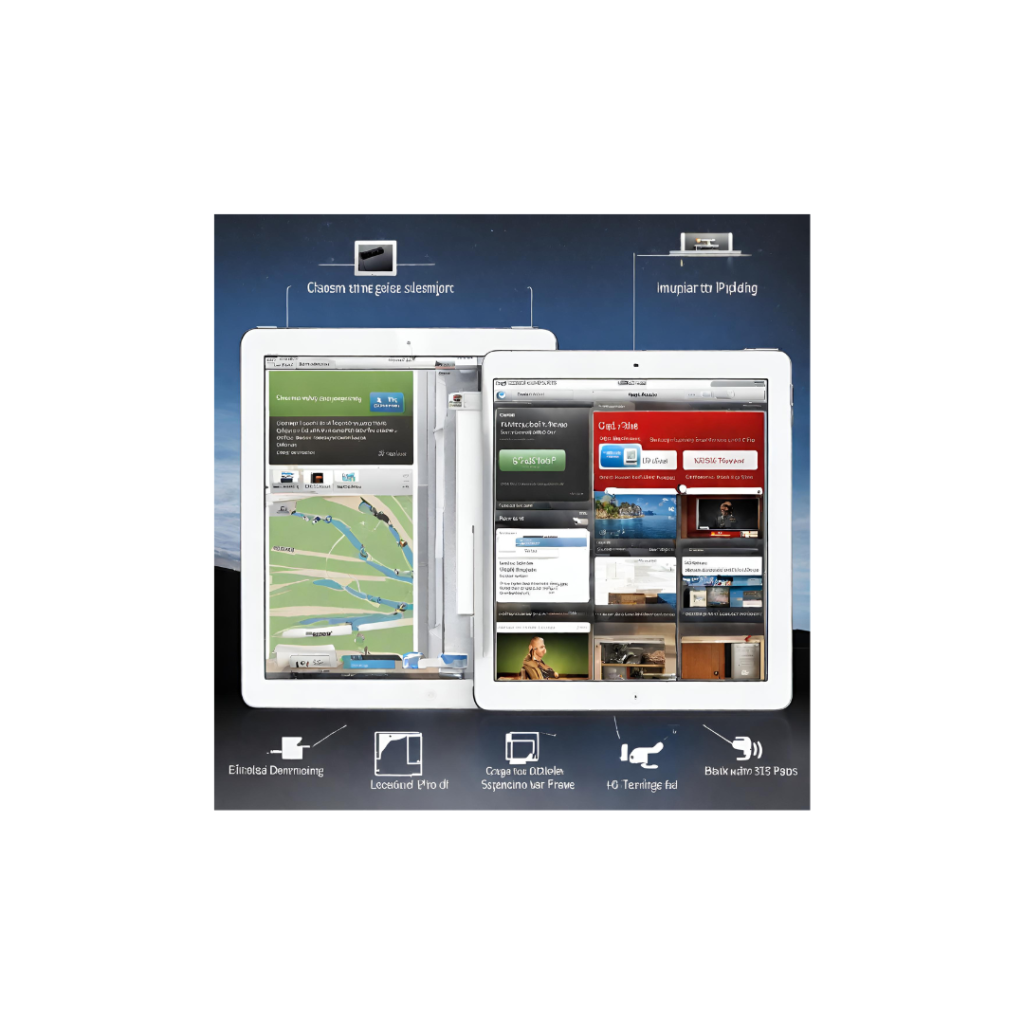
Positioning an iPad at your office entrance as digital signage is quite handy. Begin by displaying the website in full-screen mode, masking it as an app. To achieve this full-screen display, insert specific meta information in the head section of your website’s HTML source code. I’ve detailed this with a practical example on MovableType.net in a separate blog post.
Next, let’s look at the steps to lock specific apps or screens on the iPad:
- Enable Guided Access
- Navigate to: Settings > General > Accessibility > Guided Access and turn it on.
- Set a Passcode
- When prompted, configure your passcode.
- Triple-Press the Home Button
- Open the desired app and press the home button three times consecutively.
- Optional Settings
- You can customize settings like hardware buttons (sleep, volume buttons, orientation, keyboard functionality), touch, designating non-touchable areas, and setting time limits.
When activated, the hardware buttons setting will disable physical buttons. The orientation setting prevents changes in device orientation, and the keyboard setting deactivates the software keyboard. Disabling touch will not accept any screen input. But there’s also a neat feature where you can designate specific areas on the screen to be non-touchable, which is perfect if you want to prevent certain menu interactions.
The time limit is an optional feature where you can determine how long the access remains before a large notification appears, indicating the end of the session. This persists until the passcode is entered.
To conclude, combining the method to display websites as standalone apps on tablets and the technique introduced in this article to lock specific apps/screens allows users to interact with the content freely without unwanted operations. Moreover, when a website behaves like an app, it may eliminate the need for developing a dedicated native app. That’s because website development, in general, tends to be more cost-effective and faster compared to app development.
Content management systems like MovableType.net, which can manage and output various content types, aren’t just for general website creation. They have a myriad of uses. Combining such systems with tablets to showcase sites as digital signage is a skill we hope proves beneficial to you.





Comments